
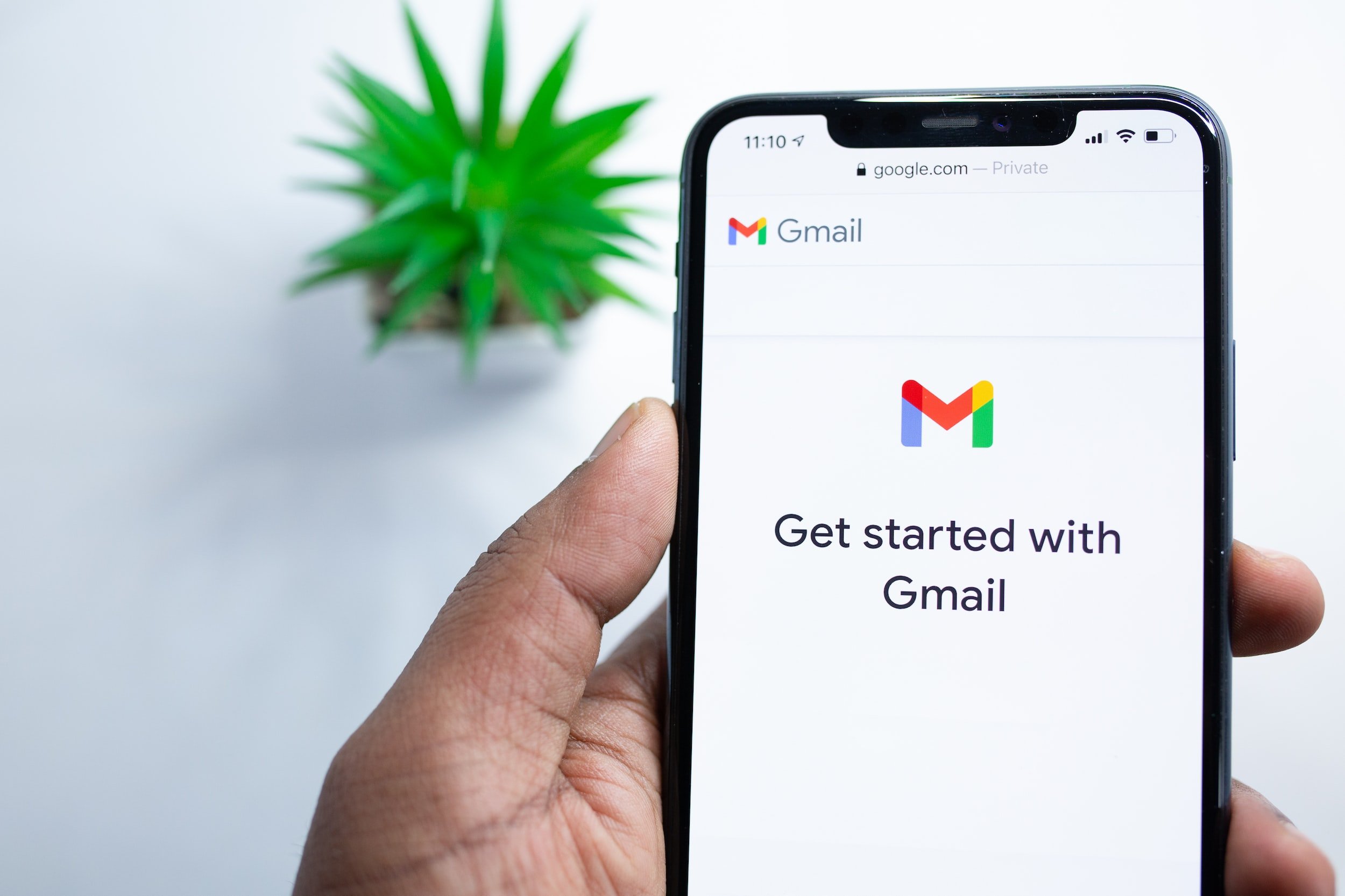
What we will actually teach you here is how to create a Google account… and why will we teach you how to create a Google account when the article is called “How to create a Gmail account”?
Simple, is that by creating a Google account, you will be able to use all the free services that this search engine gives you… among them: GMAIL.
So once you have finished and obtained your account, you will have:
– Gmail: Google’s email service is of excellent quality, its server rarely goes down and the basic plan has 15 GB of storage. In case you need greater capacity (up to 30 TB), you can see the paid plans.
– Google Plus: Google social network where you can share content and contact your family and friends.
– YouTube: well-known website for uploading and watching videos.
– Drive: file storage service, in which you can create documents, Excel sheets, forms, etc. and access them at all times since they are online.
– And much more…
How to create a Gmail account
How to create your Google account (Step by Step)
So, to create your Google account, and thus obtain your Gmail account, you must enter: https://accounts.google.com/signup
Google account form
There you will find an extensive form that you will have to complete and at the end, check that you agree with the conditions imposed by Google and click on “Next step”.
Once this is done, you will have to verify the account. To do this, you must select between two options for which they will send you a code that you must enter later.
These options are: text message or voice call.
Google account verification
Once you have selected the option that you think is most convenient, you must click continue and this window will appear, where you will enter the code:
Google account verification 2
When you enter it, Google will give you the possibility to create your Google+ profile (optional step).
4
Both when you click on “No, thanks” and on “Profile creation” you will see the following window, which shows you that by clicking on the square you will be able to access the applications described at the beginning of this article.
There you will simply have to click on “Start” and you will have your account created.
5
Beyond having created your account, Google will take you to a page where all its information will be detailed… I recommend that you verify that everything is correct and protect your account by performing a security check.
To do this, you must click on the START button, which will take you to the following window:
Gmail account security check
Here you will simply have to see that your information is correct and click where it says “All done”.
Gmail account security
The next step will be to verify that your recent account activity is correct and click on the “All OK” button again.
By doing so, you will have finished checking the security of your account and will return to your account settings.
Gmail account security
Once back in your account settings, all you have to do is click on the applications square and select GMAIL to access your email.
Did you have any problems creating your account? Leave us your questions so we can help you!
Enviar comentarios
Paneles laterales
Historial
Guardadas
El límite de caracteres es 5,000. Usa las flechas para traducir más contenido.